Functions AI assistant
How to use the AI assistant in the Functions code editor to generate, edit, and debug JavaScript code for any function type.
The Functions AI assistant is in Early Access and is only available to select customers. If you’re interested in trying this feature, contact your Tealium Support representative.
The Functions AI assistant is a context-aware chat panel built into the Functions code editor. It adapts to the function type you have open and generates JavaScript code, trigger rules, and test payloads appropriate to the function type. You don’t need any coding knowledge. Describe what you need in plain English and the assistant generates the code. For background on function types, see About functions.
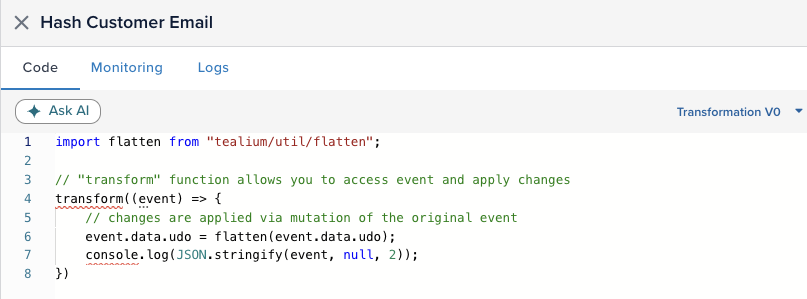
To open the assistant, click Ask AI in the Functions code editor.
Prerequisites
Before you use the Functions AI assistant, an account admin must enable it in AI Settings. To access AI Settings, click your profile icon and select AI Settings.
- On the Account tab, enable AI Functionality and set the Functions AI Assistant toggle to On.
- On the Profile tab, set the Functions AI Assistant toggle to On for each profile that needs access.
- Click Save.
For more information about AI settings, see Tealium AI Features.
What the AI assistant can do
Regardless of function type, the assistant can:
- Write and edit function code.
- Generate test payloads for the Test tab.
- Debug and explain existing function code.
- Advise on best practices for performance, personally identifiable information (PII) handling, and error handling.
Data transformation functions
For more detail on data transformation functions, see About data transformation functions.
Capabilities
For data transformation functions, the assistant can:
- Generate trigger rules that control when the function fires.
- Normalize data: lowercase, trim, and standardize field formats.
- Rename or add computed fields.
- Remove or redact PII fields before data flows downstream.
- Flatten nested objects using
tealium/util/flatten. - Hash or encrypt field values using
tealium/cryptoorcrypto-es. - Add conditional logic based on event type or field values.
Constraints
- Synchronous execution only: no
fetch,async,await, Promises, or network calls. - Mutations must target
event.data.udodirectly. Reassigningeventis not supported. - CPU budget of approximately 150 milliseconds per invocation.
- Available libraries:
tealium/util/flatten,tealium/crypto,crypto-es. - Functions can’t write to attributes with the
tealium_prefix.
Event and visitor functions
For more detail on event and visitor functions, see Event and visitor functions.
Capabilities
For event and visitor functions, the assistant can:
- Send data to external systems using
fetch()with any HTTP method: POST, GET, PUT, PATCH, or DELETE. - Retrieve and enrich data from external APIs.
- Re-send modified events using
track()(maximum 6 calls per invocation). - Access stored auth credentials using
helper.getAuth(key). - Access global parameters using
helper.getGlobalVariable(key). - Build query strings with
URLSearchParams.
Constraints
- Execution timeout of 10 seconds per invocation.
- Available libraries:
tealium/crypto,crypto-es,tweetnacl.
General function limitations apply. For more information, see Execution environment and rate limits.
Use the AI assistant
-
Go to Server-Side > Functions.
-
Open a function or create one.
-
In the code editor, click Ask AI to open the assistant panel.
-
Describe what you want the function to do. For example: “Hash the customer_email field using SHA-256 and store the result in a new field called customer_email_hashed. Keep the original field as well.”
The more specific your description, the more accurate the result.
-
Review the generated code, trigger rule, or test payload.
-
Click Use This Code In Function to insert the code into the editor.
-
If the result needs adjustment, describe the change in the chat. The assistant updates the output.
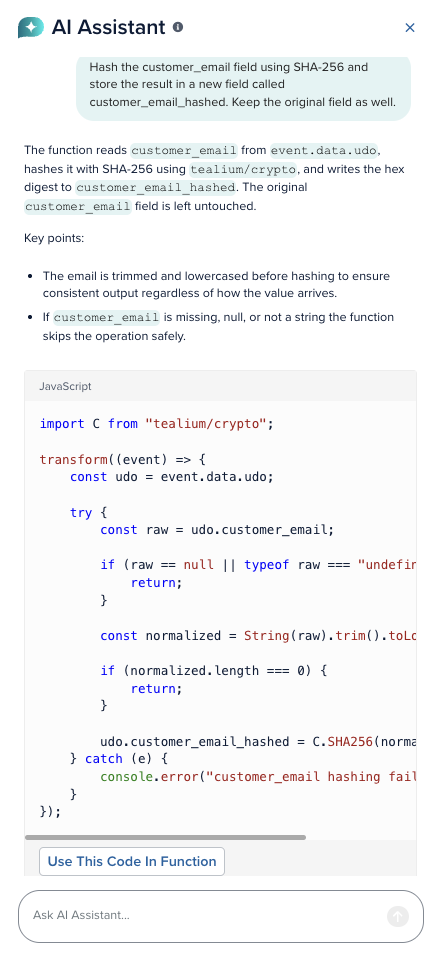
The assistant maintains context within your session. You can iterate across multiple messages without repeating earlier context. When the conversation approaches token limits, the assistant automatically compacts older history rather than cutting it off. Sessions expire after 30 minutes of inactivity.
Test a function
The assistant can generate test payloads to validate your function before publishing. To test a function with an AI-generated payload:
- Ask the assistant to generate a test payload for your function. For example: “Generate a test payload that matches my function’s expected input.”
- Click Use This Test Payload to insert the payload into the Test tab.
- Click Run Test to execute the function with the test data.
For more information about testing functions, see Test functions.
Rate limits
Tealium tracks token usage at the account level across all AI features. If you exceed the account-level limit, you can’t use AI features until the limit resets. The assistant displays the reset time when you reach the limit. For more information about your account’s limits, contact your Tealium Support representative.
Next steps
This page was last updated: June 30, 2026