Manage audiences in Tealium Audience Discovery for Snowflake
Create audiences from Snowflake data and manage them for use in Tealium.
Create audiences from your Snowflake data and manage them over time. Tealium Audience Discovery for Snowflake stores each audience as a table and a view that connects to Tealium.
Requirements
- Tealium Audience Discovery for Snowflake installed in your Snowflake account with the required roles and permissions configured. See Install Tealium Audience Discovery for Snowflake for instructions.
- Access to the required databases, schemas, and tables.
Create an audience
Source dataset
-
Open Tealium Audience Discovery for Snowflake.
-
From Audiences, click + Create new audience.
-
Enter an audience name and description.
-
Select how to define the dataset:
-
Point & Click
- Select a Database, Schema, and Table / View.
- Select a User ID column to uniquely identify each user. This column is used to de-duplicate records and ensure each user appears only once across scheduled runs.
-
SQL (Advanced)
- Select a table from Available Tables.
- Enter a SQL query to define the dataset.
- (Optional) Use AI Assistant to generate a query from a natural language prompt.
- (Optional) Use AI Syntax Check to validate your query.
- Click Preview Query to review the results.
- Select a User ID column to uniquely identify each user.
-
Cortex
- Select a semantic view.
- Choose a large language model (LLM).
- Describe the audience segmentation rule.
- Click Generate Query to create the dataset.
- Click Preview Query to review the results.
- Select a User ID column to uniquely identify each user.
The Cortex method requires a semantic view to be configured in your Snowflake account.
-
-
Review the Data Preview to validate the dataset before continuing:
- The preview shows column names, data types, and row counts.
- Use the histogram for each column to understand value distributions.
- A live record count updates as you add filter conditions.
The User ID column must contain unique values for each user. If the column contains duplicates, the app displays a warning and prevents you from continuing. Define filters to ensure each user appears only once, or work with your Snowflake data team to identify the correct column.
-
Click Next.
The audience table includes all columns from the source dataset, plus additional Tealium control columns used to track audience membership over time:
TEALIUM_CTRL_COL_INCREMENTAL_ID— A continuously increasing ID assigned when a user first enters the audienceTEALIUM_CTRL_COL_CREATED_AT— When the user was first addedTEALIUM_CTRL_COL_LAST_UPDATED_AT— When the user was last processed during a refreshTEALIUM_CTRL_COL_MEMBERSHIP_CHANGED_AT— When the user’s membership status last changedTEALIUM_CTRL_COL_IS_ACTIVE— Whether the user currently matches the audience criteria
These columns are added automatically and cannot be modified.
Audience criteria
-
(Optional) Configure audience criteria:
- Review the full dataset preview.
- Use Point & Click to add one or more filter blocks.
- Add conditions within each block.
- Use the VAL / COL toggle to switch between a fixed value (VAL) and a reference column (COL) when defining a condition.
- Select a single operator (AND or OR) for each block.
All conditions within a filter block use the same operator. To apply different logic, create multiple filter blocks.
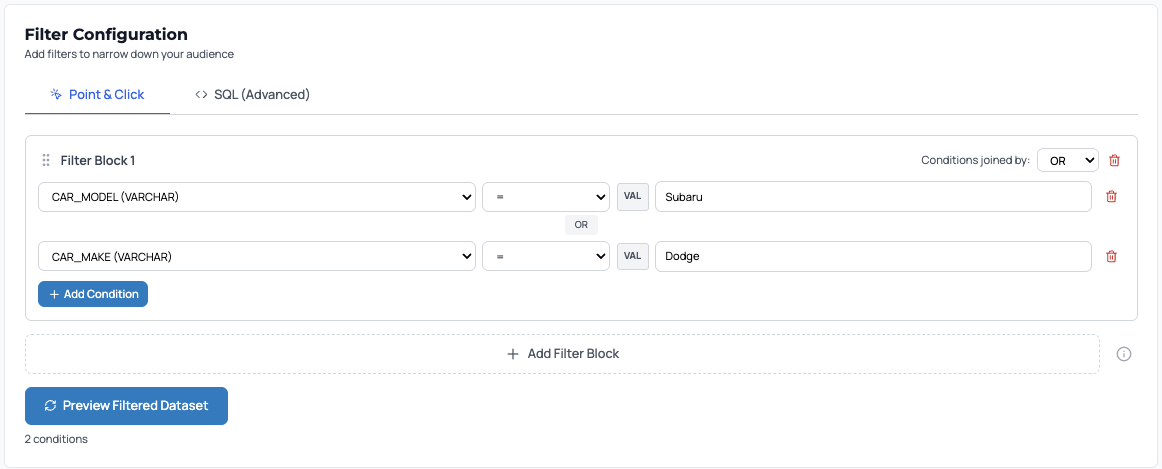
- Click Preview filtered dataset to validate the results.
- Alternatively, use SQL (Advanced) to define filtering logic using a WHERE clause.
-
Click Next.
Refresh schedule
-
Set a refresh schedule and time zone.
After the initial run processes all matching records, subsequent runs load only new records based on the user ID column.
More frequent schedules increase compute costs in your Snowflake account.
-
Click Next.
Review and create
Review the configuration and click Create audience.
The app creates the audience and runs the initial load, processing all matching records. The audience overview shows the record count increase from zero as the initial run completes. Subsequent scheduled runs add only new records.
Use Save as draft to save an incomplete audience configuration and continue later. Draft audiences are not available for downstream use until activated.
Manage audiences
Use the Audiences screen to view, update, and manage your audiences.
View audience details
- From Tealium Audience Discovery for Snowflake, go to Audiences.
- Select an audience from the table.
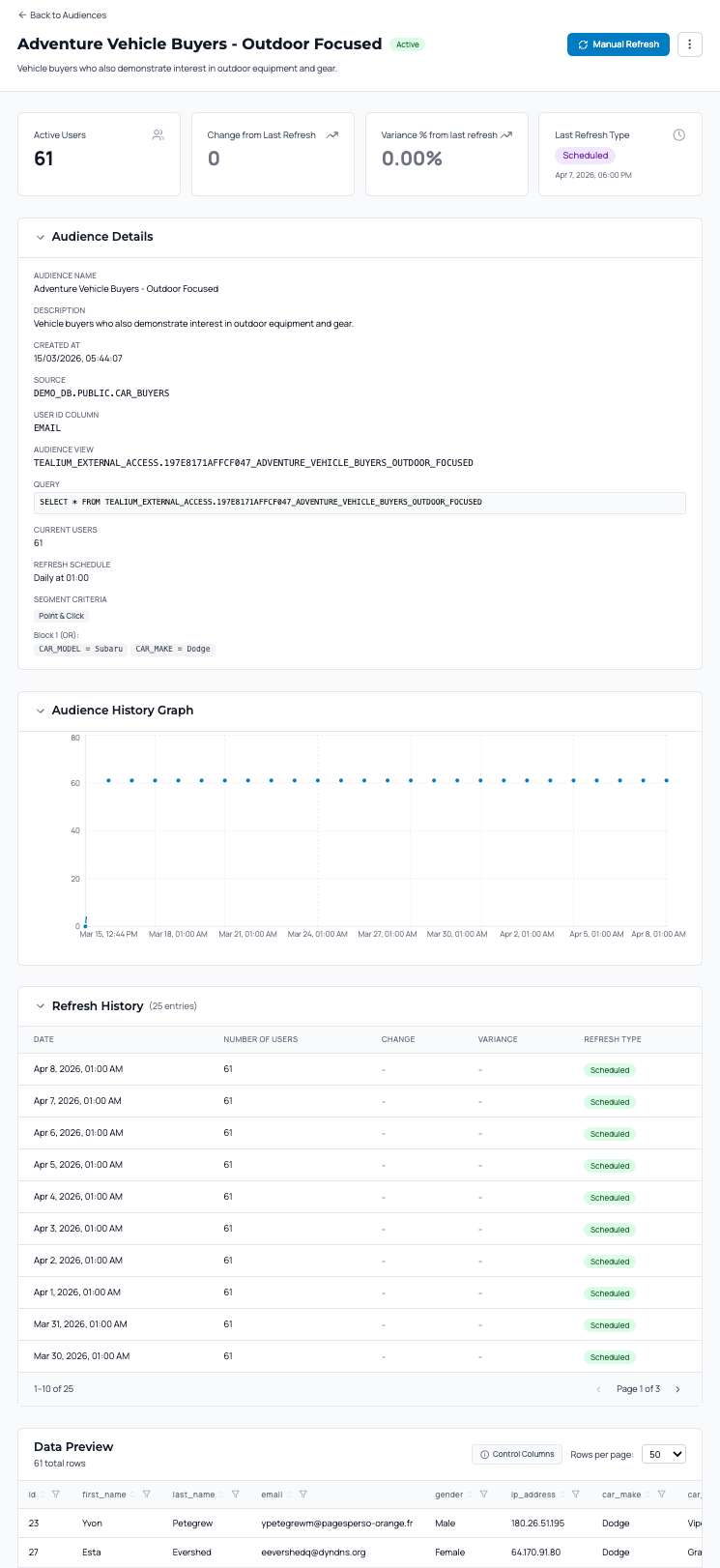
The audience details view displays:
- Current user count and change from the last refresh
- Audience configuration, including dataset, query, and schedule
- Audience history graph and refresh history
- Data preview
Audience actions
From the audience details view or the Actions menu in the table, perform the following actions:
- Edit — Update the dataset, criteria, or refresh schedule
- Use as template — Create a new audience based on an existing one
- Share — Copy the connection details to share with downstream users
- Download CSV — Export the audience data
- Deactivate — Stop scheduled updates and hide audiences from downstream users
- Delete — Remove the audience permanently
Use Share to copy the connection details required when configuring the Snowflake data source in Tealium.
Refresh audience data
Use Manual refresh in the audience details view to run an update immediately.
Scheduled refreshes run automatically based on the configured schedule. Each run is recorded in the audience history to confirm that runs are completing successfully and to track how audience size changes over time.
How audience membership changes are tracked
When a user no longer meets the audience criteria, the app does not remove the record from the audience table.
Instead:
TEALIUM_CTRL_COL_IS_ACTIVEis set tofalse- Membership and update timestamps are updated
If the user later meets the criteria again:
TEALIUM_CTRL_COL_IS_ACTIVEis set totrue- The timestamps are updated again
This behavior allows different activation strategies:
- Trigger actions only when a user first joins the audience
- Trigger actions again when a user re-qualifies
Next steps
Connect the Snowflake audiences to Tealium to begin loading data for activation.
This page was last updated: April 8, 2026